
How To Add The Trash Icon To Kali Linux’s Desktop

     Windows users may be used to the “Recycle Bin” being on their Desktop, and I admit that it is very convenient. So here’s a simple four step way to make that well-known Trash icon appear on Kali’s desktop.


Step One

Click “Applications” on the toolbar, then hover on “System Tools” for a second then click on “dconf Editor.”
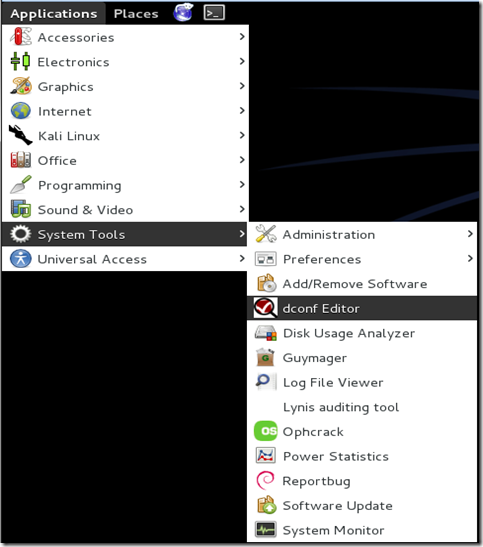
Step 1


Step Two

On the window that opens, click on the plus symbol next to “org,” then click the symbol next to “gnome” in the left pane.
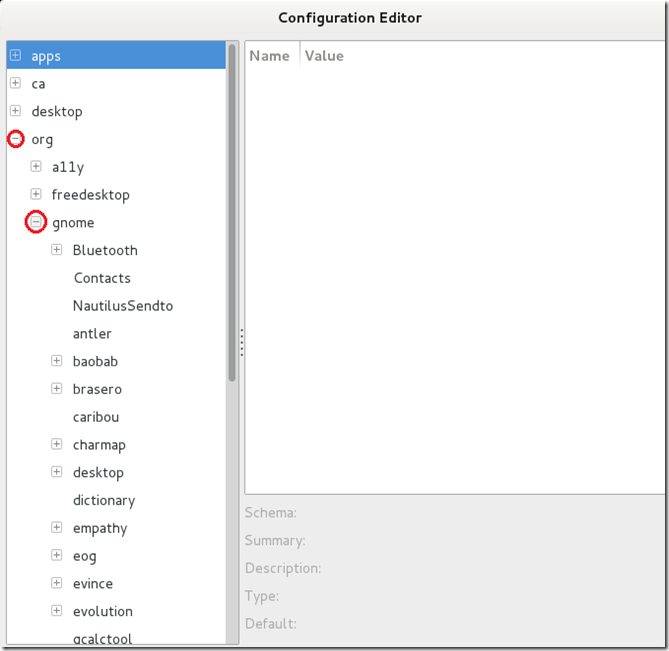

Step 2


Step Three


After you’ve expanded the “gnome” menu, scroll down the list until you find the “nautilus” menu. When you find it, expand it using the plus symbol.
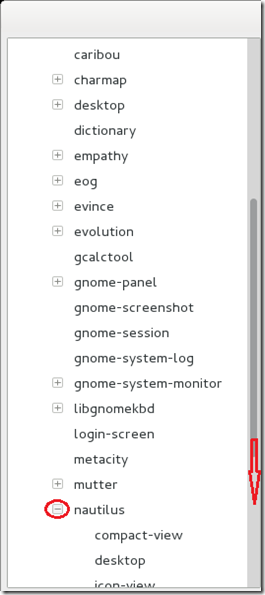

Step 3


Final Step

When you have expanded the “nautilus” menu, click on the word “desktop.” An options menu will pop up in the right pane of the window. In the right pane, check the check-box that says “Trash-icon-visible,” You can now close the “Configuration Editor” window, and the Trash icon will appear on your Desktop.
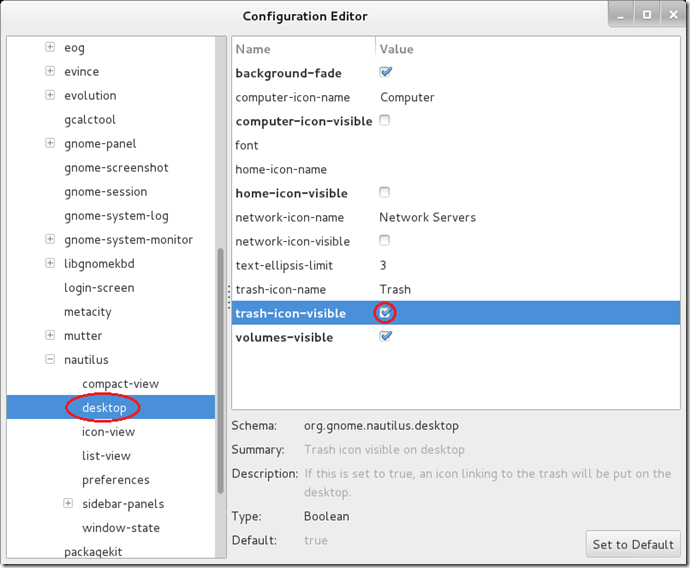

Step 4
 
All Done!

Comments

Popular posts from this blog

How to Install CloudSim in Ubuntu (in 3 easy steps)

The contents of this DIY has been tested on Ubuntu 12.04 LTS x64 with CloudSim 3.0.3 beta and JDK8u11 x64. It should work similarly on other distros of Ubuntu and for different version of JDK as long as you use Java version 1.5 or newer. The text shown in RED in the DIY represents the values that will differ depending upon your JDK version and locations. CloudSim is a framework for modelling and simulating cloud computing infrastructure and services. In this DIY we will see how to install CloudSim in Windows easily and efficiently. A more detailed description, APIs and research papers related to CloudSim can be found here . Let us begin. Step 1: Setting up the Prerequisites 1. First of all we need to download the CloudSim and latest version of the Java Development Toolkit (JDK). CloudSim can be found here . 2. CloudSim requires a working Java installation. So, open up a terminal and run the following 1 sudo add-apt-repository ppa:webupd8team/java 2 sudo apt-get...

6 Url Shorteners Yang Menghasilkan Uang Selain AdF.ly

Salam sobat GBX nah di pertemuan kita kali ini ane akan membahas 6 Url Shorteners Yang Menghasilkan Uang Selain AdF.ly seperti yang anda tau adf.ly adalah url shortener terbaik yang membayar kita karena telah menggunakan jasannya, tapi selain adf.ly ternyata masih banyak lagi Url Shorteners Yang Menghasilkan Uang, sekarang kita lihat saja ulasan di bawah.  6 Url Shorteners Yang Menghasilkan Uang Selain AdF.ly 1. Adfly adf.ly Yup yang ini memang patut diletakkan di peringkat satu ya, Adfly sudah ada dan terpercaya sejak bertahu-tahun lalu dan sudah menjadi pemendek link / url terbaik selama ini.  Selain menyediakan fasilitas penyingkat url, adfly juga merupakan situs penghasil dollar yang sudah sangat terkenal (melalui Pay Per Click dan Referal). Banyak juga teman-teman di internet yang sudah sukses mendapatkan dollar lho. (adfly ini sudah terpercaya dan ya semoga terus aman begitu dech). Komisi yang telah anda dapatkan dari adfly ini bisa langsung di transfer ke pay...

How To Add or Remove System Icons From The Kali Linux Desktop

When Kali Linux is started, there are always one or more system icons on the desktop. “Computer” is usually a default icon. However, some people might like to remove this icon and/or add other icons like the famous “Trash” icon. All the other tutorials will tell you to use the Linux, “gconfig-editor,” but Kali Linux does not have this system editor! I believe I am the only one who knows of a way to do this, so let me share my knowledge in this simple tutorial. Step one: Start and login to Kali Linux using your account or the “root” account. Step two: Open the main menu. Hover your mouse on “System Tools,” and click on “dconf Editor.” After a few seconds, the dconf Editor will open. Now all you have to do is browse to the correct category and set the options. Step three: When the dconf Editor window opens, click on the plus sign next to “org” (located in the left pane). Step four: Now click the plus sign next to “gnome.” Step five: Scroll down the list in the left pan...